.png)
Information classification for files and folders in Storegate
Overview
Information classification makes it possible to label files and folders with a security level to clarify how information may be handled within the organization. The classification applies only to data stored within Storegate and is used for visual guidance and governance.
Important: If data is downloaded, copied, or moved outside of Storegate, the classification does not follow.
Availability and Permissions
-
The feature is available to business customers only
-
Classification is visible only in the web interface
-
All users with write permissions can change classification on files and folders
-
The Admin is responsible for all default settings
Classification Levels
The following classifications are predefined in the system:
Classification - Description
None - No classification (default)
Public - Information that can be shared openly
Internal - For internal use only
Confidential - Sensitive information
Strictly Confidential - Highly sensitive information
-
“None” is not displayed in the web interface.
-
Each level is represented by a color:
-
Green – Publik
-
Blue – Intern
-
Orange – Confidential
-
Red – Strictly confidential
-
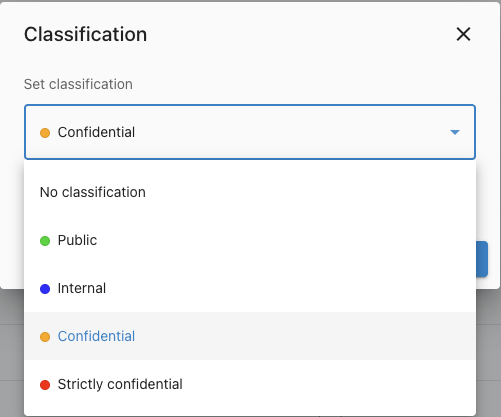
Default behavior
-
The feature is enabled/disabled under Team / Settings
-
All new objects initially receive the classification “None”
-
Existing files and folders are not affected when the feature is activated
-
The default classification can be changed by the Admin under Team / Settings
Admin Settings
Only the Admin can:
-
Enable or disable classification
-
Set the default classification
-
Manage separate settings for:
-
My Files
-
Shared Files
-
Enable / Disable
ON: The default classification is applied to the respective root folder
OFF: All existing classifications are removed
Note: “None” is always the default until the Admin changes the setting.
Classification of Files and Folders
Automatic Inheritance
-
Files created or uploaded into a classified folder inherit the folder’s classification
-
Classification can always be changed manually at file or folder level
-
Files that are moved retain their classification
Changing Classification
It is possible to change classification for:
-
A single file or folder
-
Multiple files and folders at once (bulk change)
Folder Changes
When changing the classification of a folder, the user can choose:
-
The folder only
-
The folder and all subfolders and files (recursive)
User Interface
-
Classification is shown in the file list as a colored indicator (dot) to the left of the date
-
Classification is set via the right-click menu in the web interface
Logging and Traceability
-
Every change of classification is logged
-
One log entry per file is created in the event log