.png)
Logging in to the Website
The following guide shows you how to log in to the storage area via the web.
-
Go to https://www.storegate.com in any browser.
-
Click on Log in
-
Enter your username and password and press log in.
-
You are now logged in to the service
Overview of the elements of the website
My files
 My files - Here you can find your personal files. You can access these files through Storegate Sync, Storegate Apps, Storegate website and Storegate Cloud Folder if you are logged in to a company account.
Common files
 Shared files - Here you can find the company's shared files that you and your colleagues share with each other. You can access these files through Storegate Sync, Storegate Apps, Storegate website and Storegate Cloud Folder.
Computer backup
 Computer backup - Here you can find your backup if you use Storegate Online Backup or Storegate Pro Backup to backup your computer. The files stored here cannot be edited.
Media
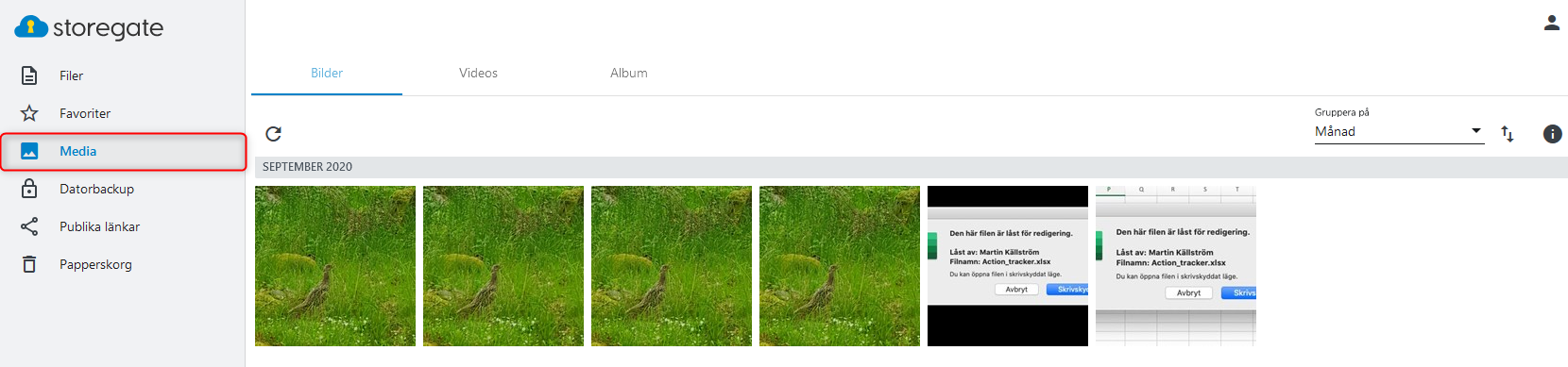 Media - Here you will find all the pictures and videos you have on your storage space. Also images and movies from Computer Backup are visible here.
Account settings
 Account settings - Here you will find information about your Storegate account, account upgrade options, user management and much more.
Public links
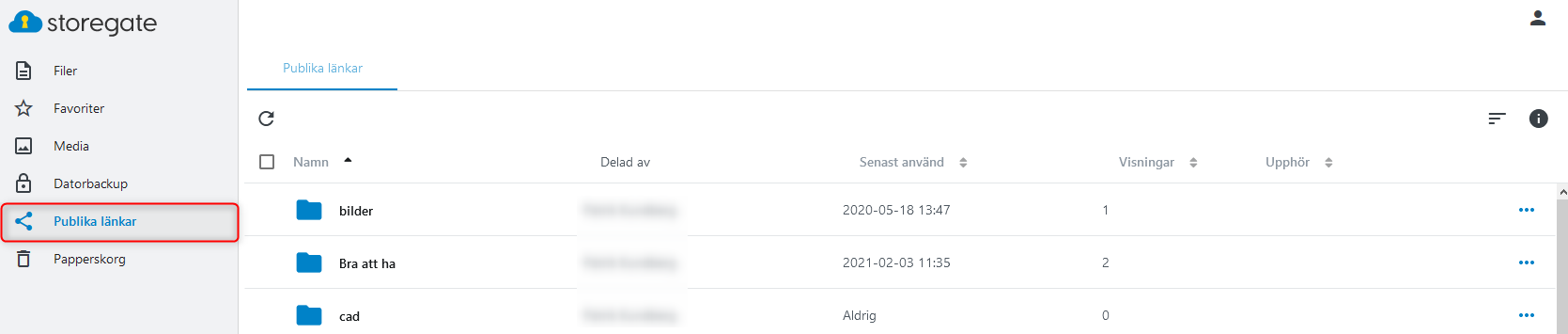 Public links - Here you can see if you have shared anything from your storage space. You can read more about sharing files here
Recycle Bin
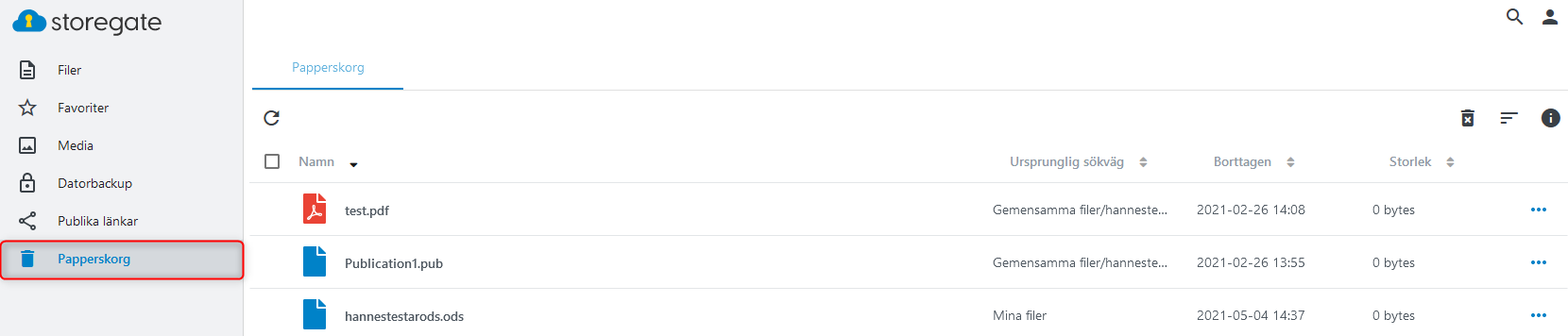 Recyle Bin - Any file you delete from My Files goes into the Recycle Bin. If you delete something from Shared Files, it goes to the Administrator's Recycle Bin. The Recycle Bin can be disabled and enabled under Account Settings.
Options
 Options - When you select a file or folder, a line of options you can do with the file appears. This includes: delete, rename, copy, move, share, download and permissions if the account supports it.