.png)
After installing "Storegate Cloud Folder", the connection between the computer and the storage area looks like this, a mapped drive in Windows Explorer with the "My Files" folder underneath. Some corporate customers also have the "Shared Files" folder here:
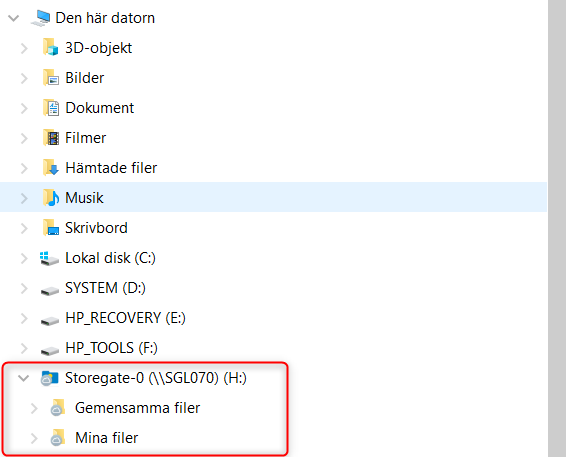
To change the mapping to point directly to "My Files" or "Shared Files", do the following:
-
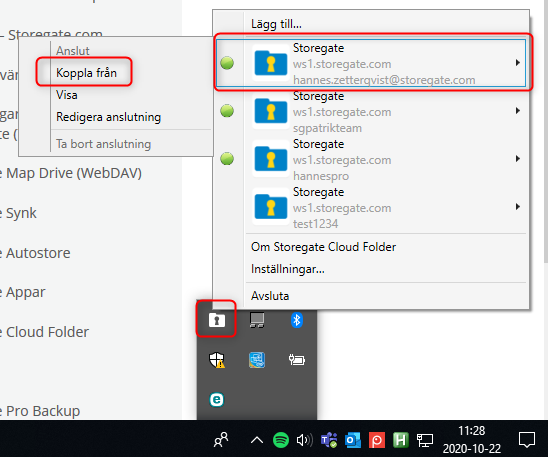
Right-click on the "Storegate Cloud Folder" application icon and hover your mouse over your connection and select "Disconnect":
-
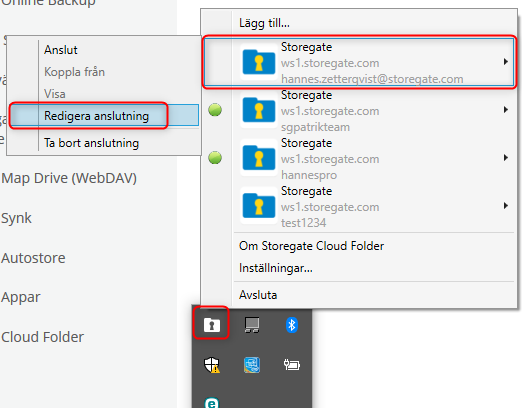
Hover the mouse pointer over the connection again and select "Edit connection":
-
Type /home/[username] in the "Path" field to point directly to "My Files" or /common to point directly to "Common Files":
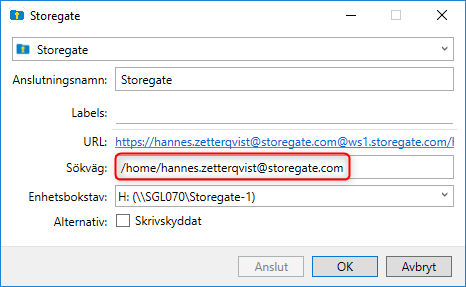
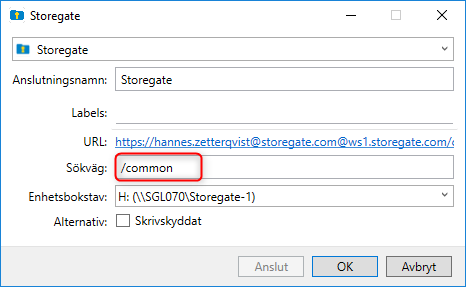
4. Click on "Connect"